468x60 Ads

Lorem ipsum dolor sit amet, consectetur adipisicing elit, sed do eiusmod tempor incididunt ut labore et dolore magna aliqua. Ut enim ad minim veniam, quis nostrud exercitation test link ullamco laboris nisi ut aliquip ex ea commodo consequat.
Showing posts with label Technology. Show all posts

Saturday, December 1, 2012

Top 10 Windows 8 tips and tricks

Customize your tiles
Windows 8 tilesMake the most of your Windows Start screen tiles by adjusting the sizes, where they are located, and what is listed.
  • Move any tile by clicking and dragging the tile. While moving a tile, if you need a larger view of the Start screen move the tile towards the top or bottom of the screen to zoom out.
  • Use your mouse wheel to scroll left-to-right through your tiles.
  • Any Desktop shortcut or program can be pinned to the Start screen by right-clicking the icon and choosing Pin to Start.
  • In the bottom right-hand corner of the start screen is a magnifying glass with tiles, click this icon to get a zoomed out view of your Start screen. In this view, if you right-click on a group of tiles you'll be given the option to name group, which can be useful if you have a group of related tiles (e.g. games). In this view, you can also click and drag a group to organize your tile groups.
  • Create a new speed bump between tile groups by moving a tile to a speed bump.
  • Resize any User tile or Live tile by right-clicking the tile and choosing resize.
  • If there is a tile you want on your Taskbar, right-click the tile and choose Pin to taskbar.
  • Show admin applications on the Start screen by clicking Settings in Charms, click Settings, and change the Show administrative tools from No to Yes.
  • In Internet Explorer 10, you can also pin any of your favorite web pages to your Start Screen.
Windows 8 keyboard shortcuts
Knowing at least some of the Windows 8 keyboard shortcuts will make your Windows 8 experience much more enjoyable. Try to memorize these top Windows 8 shortcut keys.
  • Press the Windows key to open the Start screen or switch to the Desktop (if open).
  • Press the Windows key + D will open the Windows Desktop.
  • Press the Windows key + . to pin and unpin Windows apps on the side of the screen.
  • Press the Windows key + X to open the power user menu, which gives you access to many of the features most power users would want (e.g. Device Manager and Command Prompt).
  • Press the Windows key + C to open the Charms.
  • Press the Windows key + I to open the Settings, which is the same Settings found in Charms.
  • Press and hold the Windows key + Tab to show open apps.
  • Press the Windows key + Print screen to create a screen shot, which is automatically saved into your My Pictures folder.
See our Windows shortcuts page for a full listing of all Windows shortcuts.
Know your hot corners
The corners on your screen are hot corners and give you access to different Windows features. Below, is a brief explanation of each of these corners.
Bottom Left-hand corner
The bottom left-hand hot corner of the screen will allow you to access the Start screen, if you're in the Start screen and have the Desktop open, this corner will open the Desktop from the Start screen.
Tip: Right-clicking in the left hand corner will open the power user menu.
Top-left corner of the screen
Moving the mouse to the top-left corner and then down will display all the apps running on the computer. Clicking and dragging any of these apps to the left or right-hand side of the screen will snap that app to that side of the screen. Each of these open app icons can also be right-clicked to close or snap.
Right-hand side of the screen
On the full right-hand side of the screen will be given access to the Windows Charms.
Taking advantage of search
The Search in Windows 8 has been significantly improved when compared to all previous versions of Windows. To search for a file or run a program in Windows 8 from the Start screen just start typing what you're trying to find or want to run.
As you begin typing, the results will start appearing on the left-hand side. In addition to being able to search for files and run programs, the Search also supports limiting the search to apps such as Finance, People, Maps, Photos, Mail, Music, Videos, Weather, and much more. If what you are searching for is not a file or program, click on the app you wish to use as the search. For example, if you were searching for "New York" and selected the Weather App you would be shown the weather in New York, NY.
By default, Search organizes the available Apps by how frequently they are used and then in alphabetical order. If you want to keep your favorite app at the top of the Search list, right-click the app and choose Pin. Pinning the app will lock it in place regardless of how often it is used. If there is an app you don't want (e.g. Finance) you can turn on and off any of the search apps through the PC settings, which is found under the Settings in the Charms.
Bonus tip: The Search is also found through Charms and can also be opened by pressing Windows key + F.
Running two apps side by side
Any app can be pinned to the left or right-hand side of the screen. For example, open the People app and then press the Windows Key + . (period) to move that app to the right-hand side of the screen, pressing the same keys again will move it to the left-hand side, and pressing the same keys again will make it full screen. While an app is pinned, any other app or program can be opened and loaded into the available space on the screen. For example, in the below picture, we've opened a browser window and have the People app running to monitor our social networks.
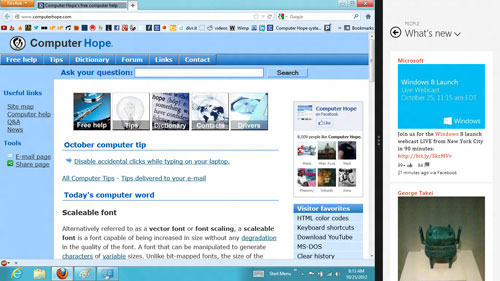
Windows 8 People
Any open app can also be pinned using your mouse by clicking at the top of the tile and dragging it to the left or right-hand side of the screen.
Bonus tip: The Desktop can also be pinned to the left or right-hand side of the screen.
Note: In order for snap to work properly your resolution must be at least 1,366 x 768.
Windows 8 Task Manager
The Windows 8 Task Manager has been significantly improved over previous versions of Windows. Some of the new changes include showing a total percent usage at the top of your Processes, which makes it easier to determine total memory and CPU usage, improved Performance graphs, a Startup tab to see startup processes and their impact to system performance, and the App history tab (as shown below) that gives you the total resources an app has used over a period of time. Press Ctrl + Shift + Esc to start exploring the new Task Manager.
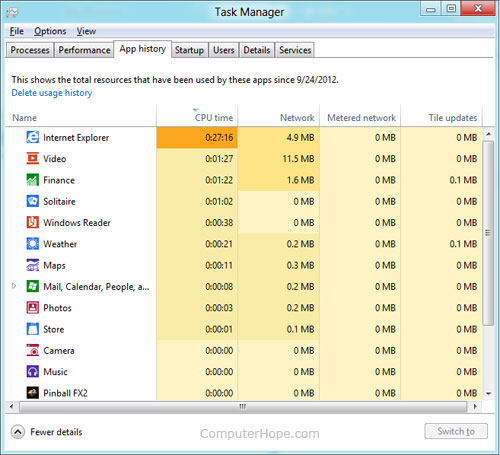
Windows 8 Task Manager
Use a picture password to log into your computer
Windows 8 includes a new feature called Picture password, which allows you to authenticate with the computer using a series of gestures that include circles, straight lines, and taps. Enable this feature if you want a new way to access your computer or have a hard time with passwords.
  1. Open the Windows Charms.
  2. Click Settings and then More PC settings
  3. In the PC settings window click Users and then select Create a picture password
Bonus tip: A four digit pin password can also be created and used to access your computer.
Take advantage of Windows 8 apps
Windows 8 comes included with several apps to help you get the most from your computer. Below are just a few of the included apps.
People
Microsoft touts the People feature in Windows 8 because they understand how many people are using social networks today. In the People feature you'll be able to connect your Windows computer to all the major social networks including Facebook, LinkedIn, and Twitter. Once connected, you can pin the people app and monitor your social network (as shown below), use People in Search to find people, and get an overview of what is happening in all your social networks.
Windows 8 People
Reader
The Reader app will give you PDF support right out of the box.
SkyDrive
The SkyDrive app will give you access to the Microsoft cloud service SkyDrive, which allows you to store your photos, documents, and other files in the cloud and access or share those files with any computer with Internet access.
Store
Take advantage of the Windows Store and install one or more of the thousands of available apps designed for Windows 8. The Store is found in the Start screen, or use Search to search the Store app for any apps that you are trying to find.
Know the answers to common questions
Windows 8 is the biggest change to Microsoft Windows since the introduction of Windows 95, which was released all the way back in 1995. Since so many people have grown up with Windows, it can be difficult to transition to a new way of doing things. Below, is a short list of the most common questions previous Windows users will have.

Top 10 Windows 7 tips


Windows 7 keyboard shortcuts

Use the below Windows 7 keyboard shortcuts to make the most of your Windows 7 experience.
Windows key and the arrow keys
Pressing the Windows key and Left or Right arrow keys will dock the window your viewing to the left or right-hand side of the screen. Pressing the Windows key and the Up arrow will maximize a window and pressing the Windows key and the Down arrow will resize and then minimize the window.
Use Shift: To stretch a window vertically, press the Windows key + Shift + the Up arrow. If you have multiple monitors use the Windows key + Shift + the Left or Right arrow keys to move the window to another monitor.
Windows key and plus and minus keys
If you ever need to zoom in or out of what is being displayed on your screen press the Windows key and the + (plus) or - (minus) keys. Pressing the plus zooms in and once zoomed in the minus will zoom out.
Clear all background programs
If you are not viewing a window in full screen and have other windows open in the background clear all background open windows by pressing the Windows key + the Home key.
  • Full listing of computer shortcuts
Use the Windows 7 search
Find and run anything in Windows by using the Windows 7 search box. Click the Start orb or press then Windows key and type the name of the program you wish to run or file you wish to edit. Windows 7 will usually do a good job at finding an exact match and simply pressing enter will execute that program or open that file. If more than one match is found, use the up and down arrow keys to select the file you wish to open and then press Enter.
Windows 7 search box
Running as administrator: Some programs may require administrator mode in order to function properly. You can run any program as administrator from the search box by typing the name of the program you want to run and then instead of pressing Enter to run the program press Ctrl+Shift+Enter to run as administrator. If you want to click and run a program as administrator hold down the Ctrl+Shift and then click the icon.
Take full advantage of the Taskbar
Pin programs to the Taskbar
All programs can be pinned to the Taskbar and allow easy access to your favorite programs without having to use the Start Menu. To Pin a program to the Taskbar right-click on the program or shortcut to the program and in the menu choose the Pin to Taskbar option. Alternatively you can also drag the icon to the Taskbar.
If you want to remove a pinned program, right-click on the Taskbar icon and click Unpin this program from the Taskbar. Alternatively you can also drag the icon off of the task bar and then click Unpin this program from the Taskbar.
Move the icons and pinned programs
Any pinned or opened program on the Taskbar can be moved and arranged. Left-click on any icon on the Taskbar and drag it to the location you want it to remain.
Windows key and a number
Pressing the Windows key and a number on the top row of your keyboard will open the Window corresponding to the open program on your Taskbar. For example, in the below picture of the Windows 7 Taskbar, Firefox i the first icon, Control panel is the second icon, and Adobe Photoshop is the third icon. If the Windows key + 3 was pressed, Adobe Photoshop would become the active window. To make it even easier arrange your icons (as mentioned above) from left to right by most frequently opened.
Windows 7 Taskbar
Pin your favorite folder
If you frequently access the same folder (e.g. your favorites, my documents, Dropbox, etc.) pin the folder to the Windows Explorer icon on the Taskbar. To do this drag your favorite folder to the Taskbar until you see Pin to Windows Explorer. Once pinned, right-click the Explorer icon to access that folder under the Pinned section.
Open a second instance
If you want to open a second instance or window of a program that is already open, press and hold the Shift key and then click the program icon on the Taskbar.
Get to the Desktop
Click the Desktop button on the far right edge of the Taskbar to get to the Desktop.
Windows 7 notification area aka systrayCustomize the Notification area
Windows Vista and Windows 7 allow the Windows Notification area (aka Systray) to be modified. By default, many of the icons shown in the past are now hidden and give Windows a much cleaner look. Customize this area to make icons show or not show by clicking on the up arrow next to the icons and selecting Customize, as shown in the picture to the right. Once in Customize you can choose what programs show, don't show, or only show notifications.
Improve the quality of your text
Use the Windows ClearType Text Tuner to improve the overall quality of all text you read on your screen. To start the ClearType Text Tuner click the Start Orb and type cttune.exe and press Enter.
Enable and disable Windows 7 features
Turn on and off Windows features by clicking Start, typing features and press enter. In the Programs and Features window on the left-hand column click Turn Windows features on or off and in the Windows Features box check or uncheck the features you want enabled or disabled.
Use the Reliability and Performance Monitor
View the reliability history of your computer by using the Reliability Monitor. Click the Start orb and type reliability and press enter for View Reliability History. In the Reliability Monitor, you'll be able to view the overall reliability of your computer and be able to identify any past problems your computer has had.
If you want to view the performance of your computer in real time use the Performance Monitor. Click the Start orb and type performance and press enter for the Performance Monitor. In the Performance Monitor, you can view your computers performance in real time or view a log of your systems performance.
Re-enable underlined keyboard shortcuts
File menu underlined shortcutsBy default, Windows 7 has the underlines for keyboard shortcuts like those shown in the picture to the right disabled. To re-enable these underlines in all Windows programs follow the below steps.
  1. Open the Control Panel
  2. In the Control Panel click Ease of Access
  3. In Ease of Access click Change how your keyboard works
  4. Finally, check the Underline keyboard shortcuts and access keys and then click Ok.
Rename multiple files at once
To change the name of multiple files at once highlight all the files you wish to rename in Windows Explorer and press the F2 key. Type in the new name you wish to use for all files and press enter. Once done all files will be renamed to the name entered followed by a unique number.
Install Windows Essentials
Install missing Windows software by installing the free Windows Essentials software package that includes: Windows Live Family Safety, Windows Live Mail, Windows Live Messenger, SkyDrive for Windows, Windows Movie Maker, Windows Photo Gallery, Windows Live Writer, and Microsoft Outlook Hotmail Connector.

Top 10 Twitter tips and tricks

Top 10 Twitter tips and tricks

TwitterBelow is a listing of our top 10 favorite Twitter tips and tricks. These tips will help make your Twitter experience more enjoyable and can help increase your followers.
Customize
  • Change your profile picture. Use a picture of yourself to make it seem more personalized if this is your personal Twitter account.
  • Utilize as much of the 160-character limit Twitter BIO space allows. Include keywords your followers or potential followers may be searching for.
  • Create your own background image. However, do not make the image too much like an ad or sales pitch. The background image must be less than 800k and we recommend a size of 1600x1200 for a large image or smaller if you plan on tiling the image or just having it on the left-hand side. Finally, keep in mind that smaller resolutions and monitor sizes will hide much of the background.
Third-party tools
Take advantage of the hundreds of different third-party online tools and services that enhance your Twitter experience. Below are a few of our favorites.
  • TwitPic - Take advantage of TwitPic to post pictures on your tweets. If you want to post pictures while away from the computer, use the Twitterific app.
  • Qwitter - Great service that sends an e-mail any time someone unsubscribes from your Twitter profile and mentions a possible Twitter post you made that may have caused them to leave.
  • Manageflitter - Fantastic site for managing your followers and getting an easy to read overview of people not following you back, quiet users, and inactive users.
  • WeFollow - Great website that allows you to add yourself to a listing of Twitter users by tags you find interesting.
  • SocialOomph - Another great service with a collection of free Twitter tools including the ability to schedule when a tweets gets posted.
  • Tweetbeat - An excellent site that takes the trending topics on Twitter and gives you a clearer explanation of present and past trending topics.
  • TwitterMeme - Another great location to find the hottest links on Twitter.
  • Twitter Grader - Great service that grades any Twitter account and gives you additional details and ranking information.
  • Twitter Fan Wiki Apps - Finally, this wiki has a listing of several hundred different Twitter applications and tools for users wanting more.
Use Twitter search
Take full advantage of the Twitter search tool. Below are just a few tips that can help improve your search capabilities on Twitter.
  • Search for your website or blog URL and see if others are mentioning your page.
  • Search for anything near you by adding near:"city state". For example, typing near:"Salt lake city Utah" club would return current tweets that have happened in Salt Lake City, Utah with the keyword club in them.
  • Find people who you may enjoy following by searching for keywords that interested you.
  • If you do not want tweets with links add ? -filter:links at the end of your search query.
  • Need more options, use the Advanced Twitter search.
  • Any time you get excellent results click the "Save this search" button to save that search. These searches can then be found under "Saved Searches" on the right-hand part of your profile on the old Twitter interface or under the "Searches" tab next to your timeline on the new Twitter interface.
Followers
  • Engage followers.
  • Do not follow too many people. No one is going to follow someone who is following thousands of people but only has 10 followers.
  • Retweet interesting posts.
  • Retweet and participate in conversations with people with a lot of followers.
  • Realize it is impossible for anyone to read every tweet.
  • When first joining do not follow hundreds of people, doing this may mark you as a bot.
Create useful and interesting tweets
  • Try making all your tweets informative, useful, or funny.
  • Do not post mundane posts, e.g. eating a bowl of cereal.
  • Add hastags to your tweets. For example, if your tweet is about computers, consider adding #computer in the tweet.
  • Tweet frequently. No one is going to follow someone they do not know who has not tweeted in months. Try at the very least to tweet a few times a week or daily if you can manage.
  • Do not whine or complain. Everyone will unfollow anyone who constantly whines or complains.
  • Try making your valuable tweets during the times people will most likely see them.
  • Keep some space available in your tweet in case someone retweets your post.
  • Use special characters in your tweets.
Know the lingo
Know the Twitter lingo, these are just a few examples: @reply, Direct Message (DM), Follower, Hashtag, Retweet (RT), Trending Topics, and Tweet. See the Twitter description for a full listing of Twitter terms and Lingo and related terms.
Follow the masters
Following a few of the masters of Twitter and Social Networking will give you an understanding of how to tweet better, posts to RT, and inspiration for tweets of your own. Below are the top ten Twitters we recommend following.
  • Twitaholic - A full listing of the top users on Twitter based on Followers. This is a terrific service to find and follow the top users and possibly incorporate some of the ideas they are doing on their account.
Tip: Many of the first few hundred people are celebrities on Twitaholic, if they do not interest you skip the first page.
Create and use lists
Twitter list iconTwitter lists are an excellent method of filtering filter through the people you follow. To create a list, click the Lists link and then Create a list. After creating a list visit the persons profile page you wish to add and click the list icon, as shown in the picture to the right. Our Computers and Tech list is an example of a public list we created.
Go Mobile
Apple iPhones, Blackberry phones, Android phones, Windows phone 7 phones, and most of the other smart phones have Twitter applications. Take full advantage of these applications. For users who do not have smart phones Twitter also has extensive support for SMS, which can send tweets over a text message.
Advertise
  • Mention your Twitter page as many places as you can, e.g. your business card, e-mail signatures, web page, blog, Facebook, etc.
  • Create a tweet button or at least your Twitter name on your pages, similar to the below examples.

3 Cool Twitter Tricks That Are Useless Without Strategy


cool-twitter-tricksMaybe you’re here for the twitter tricks; or maybe you’re here to find out why these “tricks” won’t do you any good. Either way, I think you’ll agree that these tricks are both cool and useless without one thing.


But I’ll share what that thing is later. Here’s the first cool twitter trick…
It’s all about interaction. If you’re not interacting on Social Media, and you’re just blasting out a ton of links to random followers, you’re probably not getting great results. To increase the level of interactions you have on Twitter you can use the search bar to look for people who are asking for help RIGHT NOW.
Here are some things you can type in.
  • Need Help “your keyword” -http
  • “How do I” your keyword -http
  • “How to” your keyword -http
These searches will show you the people who are asking questions about your particular niche. What makes this cool is that you can exclude all of the tweets that have links in them by adding -http. You don’t want the people who are posting links, you only want to interact with and help those who are simply asking for help.
Cool Twitter Trick #2.
If you’re taking my advice and creating awesome blog posts, you’re gonna get a lot of retweets. But the only way you could find out who retweets your stuff is by looking at your @Mentions tab; until today.
Let me show you how you can find these “hidden tweets” so you can thank and interact with them, too. Again, you can use the search bar on Twitter to search for things like:
  • “Your Name”
  • “Part of the Post Title”
For this example, I used “Craft An Awesome Blog Post” and got these results:
twitter-tricks-1This will show you the all the tweets that include your name and post title, including those who did NOT @Mention you in their tweets – and now you can thank them and possibly get some new followers, who like your stuff, in the process.
Cool Twitter Trick #3.
There’s a simple URL code you can use on your thank you page (after someone has signed up for your email list), where you can ask them to share your lead magnet on Twitter with their followers. The cool thing about this code is that you can have your people say whatever you want them to say with just one click of their mouse.
Here’s the code:
https://twitter.com/?status=Whatever You Want Them To Tweet Out Goes Here
You can clearly see how this might prove useful, but if you want a live demonstration – Click Here To See It In Action. If you shared that, I think you’re awesome too.

But, These 3 “Tricks” Are Useless Without…

Strategy! Yes, strategy! Take a second and ask yourself the following questions, and when you do, please be completely honest with yourself.
  • Why are you on twitter? What’s your game plan?
  • Are you on it because someone told you to do it?
  • Why are you trying to get a ton of followers?
  • How is it helping your blog or your business?
  • Is it because you think having 10,000 twitter followers is awesome?
Before you can answer those questions, you first need to clearly define your end goal. Goals come first, then comes strategy and then comes tactics. The biggest misconception that I continue to see in this blogging and internet business space is that these twitter & facebook tactics alone are gonna get you where you want to go. (highly unlikely)
Your tactics should always be attached to (or part of) a much greater plan; your blog marketing plan, or your overall business plan. Tactics will fail you if you’re not strategic. Period.
I’d really like to hear your thoughts.. leave them in the comments section below. And please share this on twitter & facebook; that would be awesome.
—————————————————————————
To get access to the 8 part Blog marketing course – click here. Also, check out more cool Twitter Marketing strategies here.
When you subscribe, you’ll updated every time I publish a new post. Talk soon

Tuesday, November 27, 2012

10 Time and Space-Wasting Widgets You Should Delete From Your Blog Today

It’s easy to get so excited about your new blog that you want to use every bell and whistle that you can get your hands on. But if you’re serious about building a significant readership or turning your blog into a business, going overboard with widgets and plug-ins can actually hurt you.
Here are 10 time and space wasting widgets your should delete from your sidebar today:
  1. Subscription Count/RSS Widget. This is a great idea if you have a legion of subscribers, since nothing attracts a crowd like a crowd. Otherwise, it can work against you by functioning as negative social proof. If your RSS widget shows you only have a handful of subscribers, many readers will wonder why they should subscribe if no one else is doing it.
  2. Calendar. Calendar widgets were fun and interesting when the Internet and blogs were new. But now, they’re really not. If someone wants to see something you’ve posted at an earlier day or month, they can always check out your archives page.
  3. Irrelevant Affiliate Ads. I often see new blogs whose sidebars are stuffed with all sorts of random banner ads and affiliate offers. It’s important to remember that people won’t click on your ads just because they’re there, and they’re definitely not more likely to click just because there are a ton of ads on the page. Relevance is key, so stick to promoting just one or two offers you know your readers will find useful and relevant.
  4. “Share This” Sidebar Widgets. Unless your blog is the most groundbreaking and incredible thing they’ve ever seen in their entire life, a visitor is much more likely to share single posts or pages than they are to share the homepage of your blog.
  5. “Hosted By” Badges. Most visitors don’t care who hosts your blog. And if they do, they’re more likely to respond to a well-written review post about the pros and cons of your hosting service. If you want to make affiliate sales through your hosting provider, it’s a much better way to go about it than a standalone widget in your sidebar.
  6. Blogroll/Link Exchange. If you must have a list of links of other blogs, move them to a separate page. Your sidebar should be reserved for the things you absolutely need your readers to see or do (and having them click away to someone else’s site shouldn’t be your priority).
  7. Facebook Stream. Facebook page status updates out of context can be distracting to your readers. If you really want them to become a fan or friend of your Facebook page, skip adding the feed preview and just use a simple and compact “Like” button instead.
  8. Recent Posts. It’s much more useful to have your most popular posts listed in the sidebar. Recent posts can easily be found in the archives or on your blog’s front page.
  9. Tag Cloud. No one uses them and no one has ever left a blog just because it didn’t have one.  Use a search form instead, so people can find exactly what they’re looking for instead of having to weed through post tags.
  10. Blog Ranking/Technorati Widget. Your Alexa and Technorati rankings don’t mean much to your average reader (unless you’re blogging about blogging), and I can guarantee you they won’t be looking it up just because they noticed it on your sidebar.
If you give your reader too many calls to action at a time, they’ll generally decide on inaction, since it’s far easier to do nothing than it is to choose from a plethora of options. The best thing to do is to keep it simple and save your sidebar space for the most important actions you want your visitors to take on your blog.

What’s the Best Backup Solution?


Your “techie” friends keep telling you to back up your data. Your IT guy (or gal) scolds you on the importance of backing up your data. Both of them state how easy it is to do this. We’ve even shown you how to do it.  Howe

Cloud Services for Backing Up

All of these options have free trials or free versions (along with various pricing plans) and all of them allow you to very simply back up your data to their cloud storage via the Internet. The major issue is accessing files that you may need from your computer when you are away from it. This is a backup service, not another synchronized copy available via a website. For that, you need the options in the next section.

Synchronization Services

I personally favor this approach. I can access my files from anywhere that has Internet access and in most cases, from my phone (although I still haven’t figured out why I would want to do that…)

“I lost Internet access…”

What do you do when you have a loss of connectivity to your cloud storage? This can happen due to a power loss, a misunderstanding between you and your provider over the bill payment status, or simply being in a location that has very spotty Internet access.
For this, an external hard drive or a USB flash drive or SD card may fit the bill. As long as you have power, you can backup your important work.

External Hard Drives

This is one area where external hard drives DO shine. It doesn’t matter if you have Internet connectivity or not. Your data is still safe and sound. Prices (according to the Best Buy circular in today’s paper- your mileage may vary) range from $9 for an 8GB flash drive to a $30 for a 32GB Flash drive. An external hard drive is $110 for a 1 TB drive or $170 for a 3 TB drive.
The biggest blunder that people make when going this route is that they move all of their files over to the external drive and think, “Now I’m backed up. Now I’m safe”.
The reality is that you haven’t changed anything.
All of your files are still only in one place. The only thing that’s changed is that now you think you’re secure from data loss, when in actuality, you’re worse off. At least when you didn’t have the hard drive in place, you knew you weren’t covered. Now you think that you’re good when you’re not. Your data has to be in TWO places to be safe, not one.
Cost-wise, you can pay for an external hard drive or a flash drive many times over with the cost of the online backup plans. There is one pitfall. Your files aren’t available via the Internet. A secondary pitfall is that if your house burns down, or a tornado or a hurricane hits it, then your backups are sitting right next to the computer that it’s backing up. I personally have my backup drive for my Mac (that’s at home) kept at work, to reduce this danger.
The lack of Internet access for your files is where Pogo Plug comes in handy. I purchased the Classic version (with 4 usb ports) and have a drive hooked up to it. Once I connected it to my router for my network at home, I can access it locally as well as via the Internet.

A Two-Pronged Approach

I use both the Synchronizing files and the Flash Drives/ SD cards approach. The SD cards are for data that I need to access at any time and I use the Synchronizing option for convenient, don’t-need-to-think-about-it backups.
Whichever solution you prefer, you need to back up your data that you care about. I would hate for you to miss out on the memories of newborn children or relatives that have passed away, due to theft or hardware failure. Think of it like an insurance policy  and just do it. Let me know if I missed something.

ver, you keep hearing about a variety of solutions, ranging from small USB Flash drives, to external “book” drives, to backing up to the cloud. So here’s the question…


Should you use “cloud” services to back up your files or should you use external hard drives?
The opinions are divided. On the one hand, Cloud storage technology has matured to the point where it’s fairly reliable. On the other hand, External Hard Drives only cost you the one time, but your data isn’t always available everywhere.
There are 2 different goals here and , depending upon how important one or the other is to you, will determine the best solution for you.
  1. Have your data in two different places.
  2. Have your data synchronized across multiple computers (e.g. Work Desktop and Work Laptop, or Work Desktop and Home Laptop).
Goal # 1 is the most important. If your data isn’t in at least two different places, then you will lose it. This is one of the pitfalls of using external hard drives. Most people use them incorrectly.
If you want access to your data from anywhere, then goal #2 is equally important, although it requires a different solution. You need to decide how important this goal is to you. If you are constantly e-mailing files from your personal account to your work account (and filling up your quota), then you need to try out a synchronizing service.

The Most Useful Windows 8 Shortcuts

Windows 8 has been released and for some of us, it’s time to get used to a new user interface. This can be troublesome when learning something new, particularly because this version of Windows is trying to be the best of both worlds — namely one that meets the needs of both a touchscreen device and a computer. For those of us who still use the Windows OS on a desktop computer, here are some shortcut keys to help you ease the pain of looking around to perform some of those actions.
We’ve tracked down a cool resource that lists some of the Windows 8 shortcut keys that will help you to be more efficient.
Windows refers to the Windows key. When I write Windows-C, I mean that you need to press the Windows key and the C key on the keyboard to execute the shortcut.
  • Windows: Switch between the start screen and the traditional desktop.
  • Windows-C: This shortcut opens the new Charms Bar. It works both on the start screen and on the traditional desktop.
  • Windows-X: Opens an advanced tools menu on the desktop in the location the start menu was located in.
  • Windows-Q: Opens the Apps search menu on the start screen that you can use to search for applications and programs.
  • Windows-W: Opens the settings search menu on the start screen to search for settings, Windows tools and control panel applets

Beautify your Twitter Cover in One Click

A few weeks ago, Twitter released new header image options for each user’s profile. As a result. users may now change their Twitter “cover” if they want.
TwitrCovers has the best collection of Twitter covers available that I’ve seen. All Twitter covers are divided into categories like Nature, Movies, Animals, Art, Games, Quotes, and more.


Simply choose to edit your profile using the iPad app, touch the “Header” button, and choose your preferred cover image. If you’re visiting Twitter using your computer, you can upload your cover by clicking the image of the cog in the upper right-hand corner and choosing to “Edit Profile”. Choose “Design” from the left-hand menu, and then scroll down to the “Customize Your Own” section. Then check out how much better your Twitter cover looks!

30 Windows 8 Features You Should Know Before You Upgrade Your PC


Windows 8 was released last week and the latest version of Windows contains more than 300 new features as compared to the previous Windows 7. I know many of you are still thinking about whether you should upgrade your Windows system or not. Therefore, we have tracked down 30 new Windows 8 features that can help you to make that decision.
1. The new Start Screen
The new Windows 8 start screen has all of the information you care about in one place, such as weather, your contacts, and the next appointment on your calendar. The tiles on your start screen are brimming with content that will change and update in real-time so you can see what’s going on and stay on top of things.

2. The new Charm bar
Instead of traditional “Start Menu,” Windows 8 introduces a new implementation named “Charms.” The Charm sidebar offers five sets of options, which supports system settings such as volume and brightness or app-specific settings. Five options include Start, Search, Share, Devices, and Settings. The “Start” option takes you back to Windows 8 home screen. Devices option shows you a list of devices you have connected. “Share” option offers you direct sharing to Social Networks.

3. More life to the lock screen
In Windows 8, you can select up to seven apps that run in the background and send notifications to the lock screen. Some of the apps can show updated information at all times such as Weather app or Calendar app.

4. Pin everything you love
The New Start Screen is for not only live tiles and information updates; it is an important bulletin board on which you can pin whatever you like. For example, you can pin specific websites or particular sections of an app. You can pin one specific place from your travel app so that you can keep track of that location at the Start screen.
5. Seamless integration of touch, keyboard, and mouse
You can now switch between apps, organize your Start screen, and pan and zoom. With the touch keyboard, you can navigate, type, and interact on the go. Because you work in different ways depending on which app you’re using, Windows 8 make it easy to use whichever method works for you.
6. New Windows store
The new Windows store is designed to make it easy to discover apps without getting lost. You will see apps featured on the front page and it is easy to find apps because they’re well-organized in categories like New Releases, Top paid and Top free. After you decide, you can buy with peace of mind because before an app makes it to the Windows Store, it is screened and checked if there are any virus.

7. Protecting children from the Windows store
Using Family Safety, you can change the settings to determine what your children can download and see in the Windows store. Setting up a rating level filters the apps and games that children can access the Windows store in a safer environment on you preferred requirements.
8. Windows 8 keyboard switch to your language automatically
The new touch-enabled PCs with Windows 8 installed, the keyboard layout automatically adjusts to the language you have chosen based on your preference. So, language settings apply to the whole PC rather than just some of your apps in your PC.

9. The new Navigation of Touch screen
Some common Windows 8 gestures:
  • Swipe from the right edge for system commands
  • Swipe in from the left to switch app
  • Swipe in and out on the left brings up previously used apps
  • Swipe from the bottom or top edge for app commands
  • Drag an app to close an app
  • Press and hold to see more options
10. Everything on Windows 8 is cloud-connected
If you sign in your windows 8 device with Microsoft account, your personalization, desktop background, and settings are all there, which is similar to the synchronization feature of Google Chrome. You can now start a project on one PC, and finish it on another. When you use the cloud to store your information, the boundaries between devices dissolve.
11. Windows To Go
Windows To Go allows users to make a complete copy of their Windows 8 OS with their settings, wallpapers, apps, and even files into a USB thumb drive. Plugged it into another computer with Windows 8 already installed, and users can boot up the Computer with the look exactly alike the Windows 8 that you normally use.

12. Connected to your files on cloud
One of the new Windows 8 features is that you can switch from one Windows 8 device to another and be ready to pick up where you left off just by signing in. When your files are put in the cloud, you can access photos and other files on Microsoft SkyDrive when you have an internet connection.
13. Family safety in the cloud
You can now set up accounts for your children so that you don’t have to worry about their online activity. Family Safety will monitor your children’s activities and let you know what they are doing in real-time. If you connect the account, you can get a weekly report about their online activity. You can also set up web-site filtering and time limits as well as app restrictions for your children.
14. Applications work well with each other
In windows 8, apps work together very well so that you can share information between different applications and streamline your work. For instance, Mail and Photos apps are well-connected; you can select an image in the photos app and email it to one of your friends in your email contact list.
15. Web navigation by fingertip
The notorious Internet Explorer has been re-built in Windows 8. It is now designed to offer faster browsing via better hardware acceleration, along with high-speed gesture-based zoom, pan and web site navigation.

16. Support USB 3.0
USB 3.0 performs ten times faster than the original USB 2.0. Microsoft offers better support for native USB 3.0 devices. Now Windows 8 users can enjoy a super speed USB without using third-party driver.

17. Improved total search experience
If you want to search something, all you need to do is to type anything, and a search box will appear from the right and give you he results. The search capability is much stronger than previous windows version, which displays all the matching apps and files instantly.

18. Search within apps
You can now search within apps within Windows 8 search function. The “Charm” pane that pops out on the right column will show you the list of apps that you can conduct the search in. If you’re looking for emails sent by a particular person in your contacts, type the name and click the email app you wish to search in.
19. Share between devices without any cables
Tap and Do works on mobile devices equipped with Near Field Communications (NFC), so you can tap two devices together and share information easily. Tap and Setup is another new Windows 8 feature that lets you connect wireless devices such as keyboards, mics, or headphones by simply tapping them against your PC.
20. High speed boot time
The Loading and boot up speed has greatly improved over Window’s predecessors because there is better resource allocations to applications and the system. Compared to Windows 7 desktop, Windows 8 has higher speed boot time.
21. Better support for multiple monitors
Windows 8 now brings increased support for multiple monitors. You can now extend the taskbar across two Computers without using any third-party apps. You can also extend your wallpapers across two monitors. You can also switch quickly between primary and secondary monitor by clicking the switch button.

22. Keep Windows Update out of your way
If you turn on Windows Update during the setup section and your PC needs to update, Windows 8 can now install it when you are not using your PC, or at a time you’ve specified.
23. Build-in mobile broadband features
In Windows 8, it adds support for 3G and 4G telecommunication, which enable business users on the go to connect to the internet immediately. Windows 8 mobile broadband support can help keep data usage costs low with built-in mobile broadband metering.
24. SmartScreen protects you from malware on the internet
If SmartScreen is turned on at startup, the technologies check the reputation of any new app or website, helping to keep users safe no matter what browser they are using. This can help to prevent malware and viruses from infiltrating your computer.
25. Protect computer without third-party software
If you don’t have any malware scanners installed, Windows Defender monitors and helps protect your PC against viruses and other malware in real-time. If your PC becomes infected, it will automatically detect and removes malware. Windows 8 can also manage anti-malware software to help keep your PC safe.
26. Re-designed task manager
The new task manager is a handy dashboard that you can use to monitor and control your PC. The New Color-coded tiles present information in a way that’s easy to understand. You can keep track of resources efficiently and in real-time with graphs and details about process, apps and history as well.

27. Redesigned keyboard shortcut key
If you are not using touch-based devices, you can still enjoy new windows 8 features with keyboard shortcuts to access the best Windows 8 features. The following list includes some of the most useful commands:
  • Windows key + F: To open the search on Charm
  • Windows key + H: To open the share on Charm
  • Windows key + C: To open Charm
  • Windows key + K: To open the devices Charm
  • Windows key + O: To lock the screen orientation on tablet
  • Windows key + Z: To open commands for app
28. Easy restore
New Windows 8 has streamlined the options of system recovery, with options limited to “Refresh” or “Reset.” Refresh preserves your settings, files, and apps bought via Windows Store. “Reset” is a full system purge and restores the system without reinstallation, which is similar to restoring your iPhone via iTunes.
29. New login methods
Through a touch screen or mouse, you can now set your password to comprise a set of geometric gestures. This feature can only recognize simple gestures like lines or curves, but the result should be unique enough to make this a reasonable security alternative.
30. Better copy experience
Windows 8 introduced new copy operations, where all the file copying goes into a single dialog box. The new dialog box for file copying allows you pause, resume, or stop each operation. Now each copy job shows the speed of data transfer and how much data is left to transfer. In many cases, it can provide a quick and easy way to assess what is going on for a particular copy job.

What Can Software Developers Teach us About Crushing the ‘Perfection Bug’?

Imagine this: Your desk is full of paper and it’s all related to unfinished work. Also, your task list never seems to shrink – instead, it’s growing bigger and bigger. Even if you work hard on your tasks, you have this nagging feeling of incompletion in your head. You also feel that it is impossible to meet your inner critic; you are never satisfied to your results.
You are frustrated and burnt out. And even if that’s not enough, you start to procrastinate on your tasks.
You only wish that you could leave the office at 5PM and spend time with your family. And then you look at the piles of paper on your desk.
It is going to be yet another night spent working.

There is no finish line in sight

Unfortunately, this image is way too common in offices around the world. Most people are overwhelmed by the amount of unfinished work they have.
There are really four reasons why this is happening:
First, it’s because the amount of distractions. They don’t have a chance to work in a focused manner and their work performance slows down.
Secondly, it is because working on too many things (tasks, projects, etc.) at once. When they work like this, they are unable to get anything properly completed.
Third, they don’t have an organized way of handling the workload; they have issues with prioritization and they don’t know what tasks to focus on next. This in turn may be caused by a non-existent day planning.
Now, even if those three previous conditions are met, there is still one thing that causes people to procrastinate and be overwhelmed: It’s the unfinished work and the fact that they are never 100% percent satisfied to the quality of their work.
When they are unsatisfied to their work quality, they keep tweaking and tweaking the results but they are unable to finish anything. This is a sure way to overwhelm their selves and generate unnecessary stress.
It is also a sure way to make other people angry – especially if their performance is dependent on the person who is never capable of finishing his/her part of the task/project.

If it’s not perfect, it is not ready!

Inability to let go of tasks and never finishing them are symptoms of perfectionism.
The fact is that you are never going to satisfy your inner critic because you think that there is yet another tweak that you have to do until you can let go of the task.
What is causing all this?
It’s the underlying fear that is holding you in its arms; the fear that others label you as a failure if you release something imperfect. The fear that you are letting yourself down (and not meeting your standards) if everything is not 100% perfect.
Well, I have some news for you — perfection doesn’t exist!
I admit that in certain circumstances (for e.g. professions) you always have to be striving for perfection, for example when you are an airline pilot or a surgeon.
But in 90% of other cases perfection is not serving you. Instead, it is slowing you down, making you procrastinate and increasing your stress levels.

Let’s talk Scrum

If perfection is slowing you down, help can be found from a surprising source; from the world of agile software development and Scrum.
“Hmm… Scrum? What is Scrum?” you are asking.
Scrum is a software methodology that software developers use and one of its components is “Definition of Done” (DoD). It describes what a development team has to have ready by the end of the development iteration (also known as sprint).
When the team declares something as done, it means that the new functionality is fully tested, documented and could be even put to production.
Even if the DoD is used in context of software development, it can be easily applied to individual productivity needs as well.
Definition of Done describes clearly and explicitly what needs to be achieved until a task can be declared as done. And when you define your “done”, you can get rid of your perfection bug.

What is your definition of done?

Let’s take the concept DoD, simplify it a bit and put it into the context of personal productivity. To create your definition of done, follow these steps:
  1. Define a task you want to accomplish
  2. Explicitly describe (in written form) what requirements have to be met before it can be called ready
  3. Mark a task as checked when it’s ready
  4. When all the rows are checked, that particular task is done
Let’s say that you are blogger, you want to define your “done” regarding a new blog post. In that case part of your DoD could look like this:
Writing a blog post:
  • Outline a post [checked]
  • Write a post [checked]
  • Proofread the post [ ]
  • Create a compelling headline [ ]
  • Find a accompanying picture [ ]
  • Schedule the post in WordPress [ ]
  • Write an email message to your autoresponder [ ]
  • [ ]
The previous DoD is clearly explaining what has been achieved so far and what still needs to be done.
To make your DoD even more effective, share this with an accountability partner if you have one. This way you can make continuous checks on how you are progressing with your work and if the individual tasks have been accomplished or not.
If you still try to strive for 100% perfection, your partner can remind you of the agreement that you have created (your DoD). This way you are not endlessly wasting your time by making irrelevant tweaks to your tasks.

Conclusion

I have been guilty of striving for perfection and this bad habit has slowed me down on my projects.
However, once I started defining my “done” (in a written form), I was able to see clearly which parts of the project were finished and which still required my attention.
Once the item on the list is checked, it’s done and I can move to the next task or project.
How do you handle perfection?